mirror of
https://github.com/vadimmelnicuk/meo.git
synced 2026-09-23 00:15:46 +00:00


Markdown Editor Optimized (MEO)
An optimized markdown editor with live editing mode for VS Code.

Features
Writing & Editing
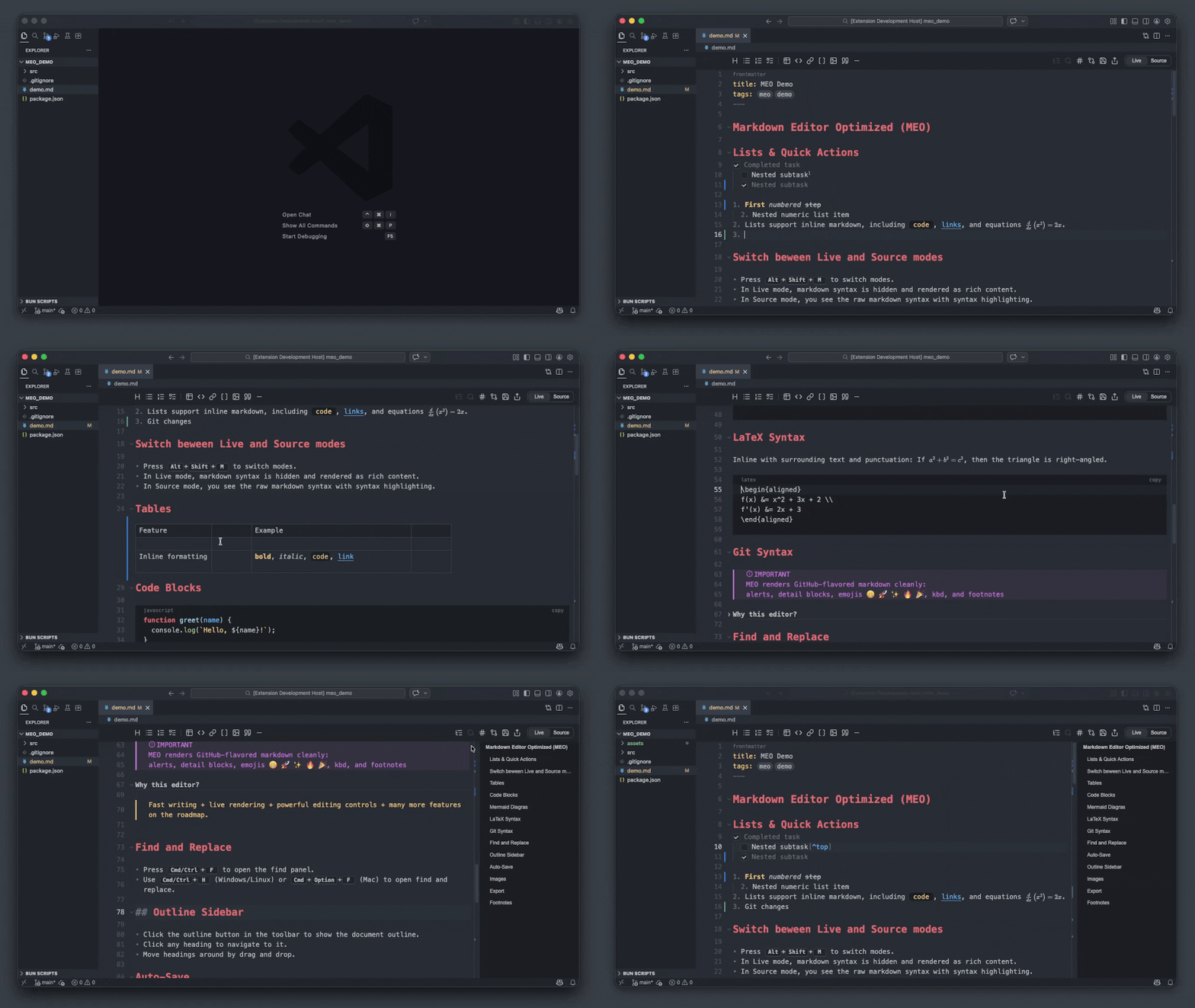
- Live/Source modes - Switch between clean writing and raw markdown in a single tab
- Read Only - Lock all documents in Live and Source using the button beside Spell Check. Read Only defaults to off and is remembered across editor sessions and workspaces. Live stays rendered while selecting and copying text. Toggle off to edit.
- Toolbar formatting - Insert headings, lists, tasks, tables, code blocks, links, images, and quotes in one click
- Floating selection menu - Instantly apply bold, italic, strikethrough, inline code, or links on any text selection
- Spellcheck - Fix issues with built-in spelling suggestions
- Interactive editing - Toggle tasks, open links, find/replace, render full-screen Mermaid diagrams, and LaTeX syntax
- Images - Paste images directly into notes with inline rendering and automatic path resolution
Navigation & Organisation
- Contents outline sidebar - Jump to and reorder sections in long documents with ease
- Table editing - Insert and edit tables inline without writing raw syntax
- Scroll memory - Reopening a long file restores your previous scroll position
Git and Agents Integration
- Change visualisations - See insertions, modifications, and merge conflicts inline
- Git blame - View commit information for any line directly in the editor
- GitHub syntax - Renders GitHub-specific markdown including collapsible details, footnotes, alerts, kbd, and emojis
- GitHub Copilot - Support of native changes review experience
Customisation & Export
- Theming - Guide - Customise syntax colors, background, fonts, and line height to match your style
- Default themes - One Monokai, One Dark Pro, Dracula, Gruvbox, Nord, Solarized Dark, Catppuccin Mocha, Tokyo Night, GitHub Dark, and GitHub Light
- Configurable keymap - Remap editor shortcuts or pass them through to VS Code from settings
- Export - Save your document as HTML or PDF
Getting Started
- Right-click any
.md,.markdown,.mdx, or.mdcfile in the Explorer → Open With Markdown Editor Optimized - Set as default:
Cmd/Ctrl + Shift + P→ Markdown Editor Optimized: Set as Default - Toggle between Live/Source modes:
Option/Alt + Shift + M
Acknowledgements
- VS Code - Extension platform
- CodeMirror - Core editor component
- Obsidian - Inspiration
Feedback & Contributions
For any issues, suggestions, or feature requests, please open a ticket.
Changelog
Please refer to CHANGELOG.md for details about ongoing changes.